
Pick up where you left off
Switch environments and return to the last workspace you used there. Your work stays arranged while you step away.
Made for GNOME Shell 46
Two environments. One familiar desktop.
Give each part of your day a place of its
own—and switch without losing your flow.
v0.2.1 · Open source · MIT licensed
A little structure. A lot less switching context.
Keep your hands on the keyboard. Keep your attention on the task.
A desktop that fits your day
Personal and Work start with nine workspaces each, arranged as two logical 3 × 3 grids. The label in GNOME’s top panel keeps your current environment and workspace in view.
For example, Personal: 2 / 9 means you’re in the Personal environment, on workspace 2 out of its 9 workspaces. The label updates as you switch, and uses your custom environment names. Click it to switch environments or move the focused window to the other environment.
Switch environments and return to the last workspace you used there. Your work stays arranged while you step away.
Open the Picker with Win + W. Both environments appear on every monitor. Use arrows or a click to switch immediately.
Send the focused window to another workspace or the other environment, and follow it with focus intact.
Navigate with directional shortcuts and wraparound, or jump directly using the numeric keypad. Directional animations help you stay oriented.
The passive Preview shows your destination as you change workspaces. It stays while modifiers are held, then disappears without taking focus.
Rename your environments, customize shortcut alternatives, and set Picker and Preview delays. Both delays default to 500 ms after modifier release.
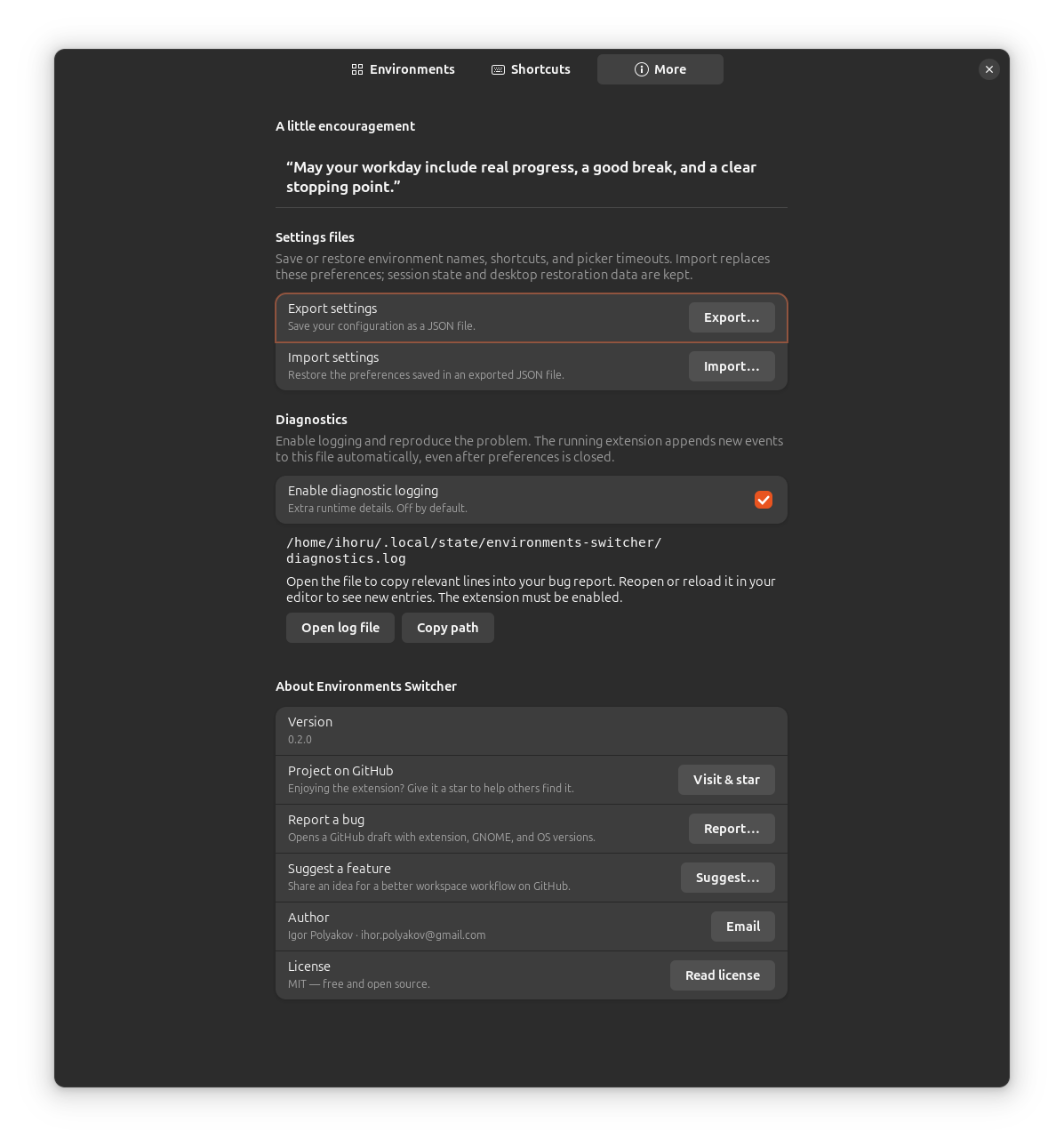
Three pages. Your preferences.
Take a closer look
From the big picture to the smallest preference.
Explore the Picker, multi-monitor Preview, and all three Settings pages.
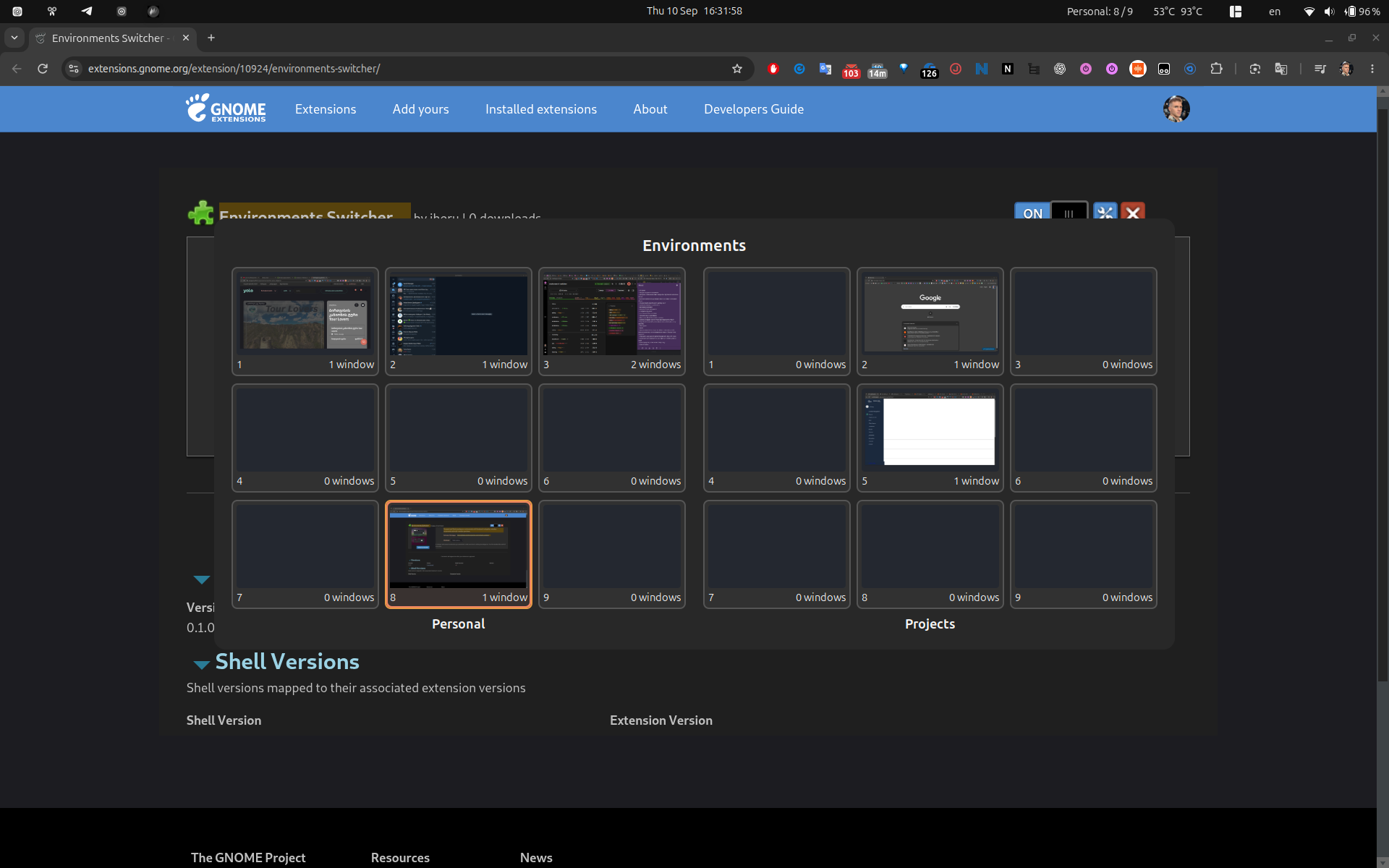
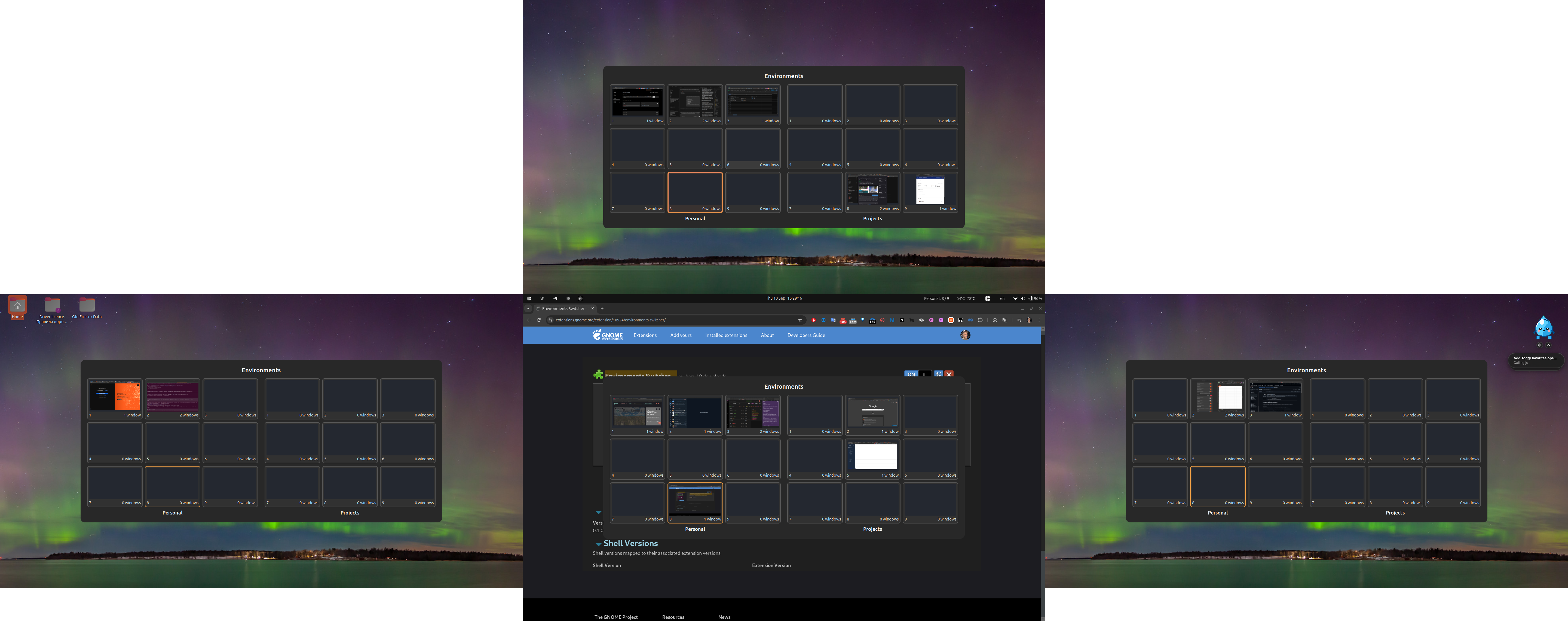
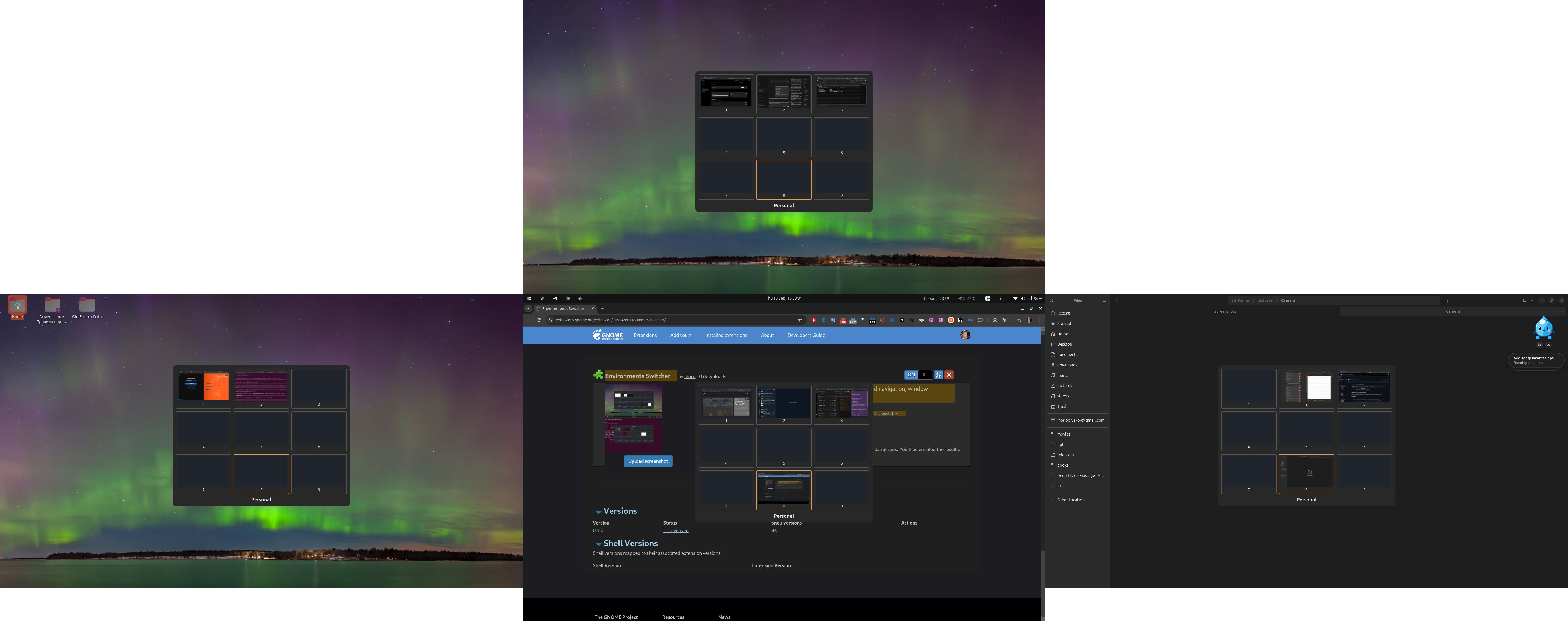

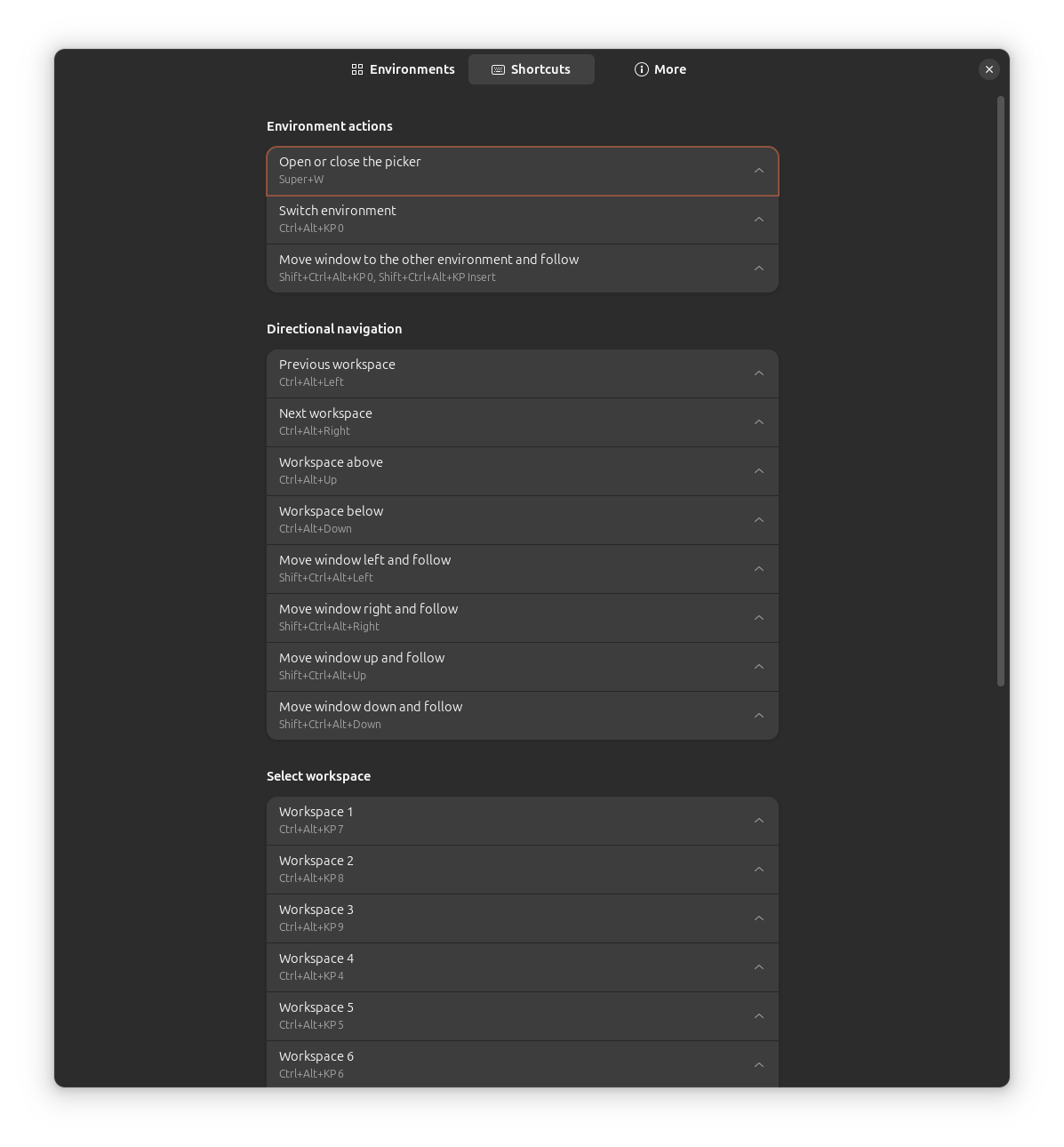
See the flow
Screencast coming soon
A few moves. A whole new rhythm.Change workspaces Move a window to another environment Switch environments Open settings
Less reaching. More doing.
Win is the Super key. KP means the numeric keypad. All extension shortcuts can be customized in Settings.
Use Num Lock for keypad workspace selection.
Version 0.2.1 targets GNOME Shell 46. Choose the installation method that suits you.
The easiest method. Visit the extension’s page on extensions.gnome.org.
No cloning, Node.js, or build tools needed. Download and install the latest release as your normal user. The download URL automatically follows new GitHub releases:
zip=$(mktemp --suffix=.shell-extension.zip) &&
wget -O "$zip" \
  https://github.com/ihoru/gnome-environments-switcher/releases/latest/download/environments-switcher@ihoru.github.io.shell-extension.zip &&
gnome-extensions install --force "$zip" &&
rm -f "$zip"
On X11, press Alt + F2, type r, and press Enter to restart GNOME Shell. On Wayland, log out and back in instead. Then enable Environments Switcher in the Extensions app.
Prefer a manual download? Download the latest ZIP from GitHub ↗
Use Node.js 24 for development checks. The extension itself runs with GNOME Shell and GJS.
sudo apt install gnome-shell gnome-shell-extension-prefs libglib2.0-bin python3
git clone https://github.com/ihoru/gnome-environments-switcher.git
cd gnome-environments-switcher
npm ci
npm run check

# Install the checked bundle as your normal user.
gnome-extensions install --force dist/environments-switcher@ihoru.github.io.shell-extension.zip

# Before running the next command, restart GNOME Shell:
# X11: press Alt+F2, type r, then press Enter.
# Wayland: log out and back in, then reopen your terminal.
gnome-extensions enable environments-switcher@ihoru.github.io
Found your flow? Give the project a star.
Have an idea or spotted a bug? Let’s hear
it.
“One small finished task beats ten beautifully organized intentions.”A little encouragement, from the extension